Before you start
Save your recording in Files. Sign in to use your personal Library and Setlists. To hear an example first, play the Karmaşa demo.
Add a song
- Choose Add song in Cuebie.
- Select your recording from Files.
- Open the song in Studio and play a few seconds to check you chose the right recording.
File not opening? Check file access.
Set tempo and time signature
Set the BPM and time signature to match the recording. Align the first beat and listen to the click against the song in more than one place. Cuebie plays a fixed tempo; a recording with tempo changes can drift away from that click.
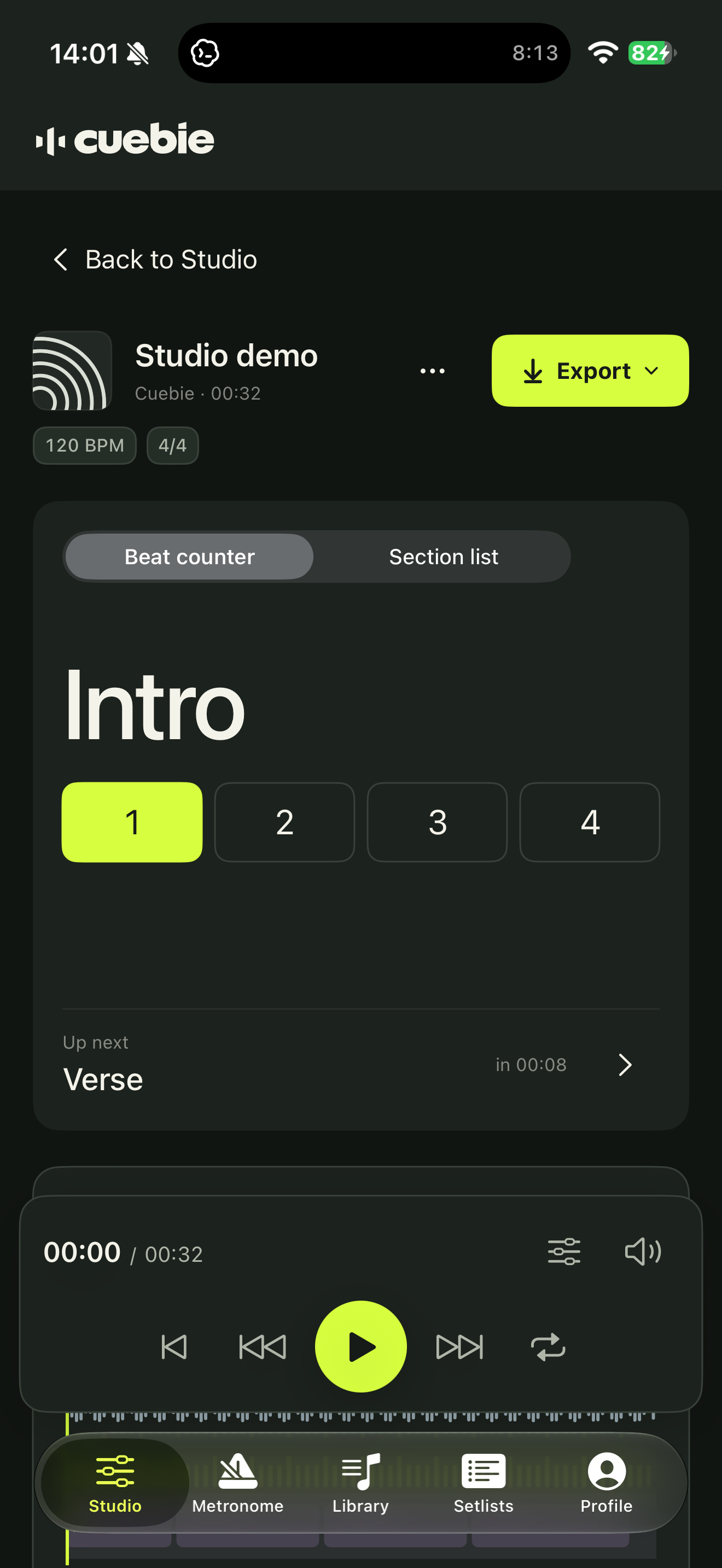
Mark your sections
Open the section editor and name the parts you want to hear announced, such as Verse or Chorus. Adjust their boundaries to match the recording. Play from just before the section starts to check its timing.
Choose cues and count-ins
Choose a cue voice and set when the cue should play. Use the count-in settings to give yourself time before an entrance. Play from just before the cue to check its timing.
Balance the mix and rehearse
Adjust Song, Click and Cue separately. Bring the click and cue up enough to hear them over the recording, then play through the part you’re rehearsing. If a channel is silent, check its mute and solo settings.
Organize songs and setlists
Reopen your songs from Library. Use Setlists to put them in rehearsal or performance order. See Account & data for where your songs are kept.
Export WAV tracks
Open the Studio export options and select the WAV output you need. Save or share it using the options on your device. Play the exported file once before rehearsal to check the channels and timing.
Practice with the metronome
Open Metronome without importing a song. Set the tempo, time signature and subdivision, then start the click. Use Tap to estimate tempo from the beat you tap.